Duplicacy copy over SFTP setup help

I have my Unraid server (A) doing frequent Duplicacy backups. The initial backup is complete.

I want to incrementally copy that backup over to computer B via SFTP.

I tried to follow the docs about the copy command but have no idea where to even begin. I need some examples.

Can someone please help? What do I need to do on Computer B? All I have done so far I have installed the duplicacy CLI installed.

Assuming:

your A backs up to server B1
You want to replicate that backup to SFTP server B2.

  1. Create an empty folder
  2. Initialize new repository there, pointing to storage B1. (duplicacy init)
  3. Add another repository there, pointing to storage B2 (duplciacy add)
  4. run duplicacy copy to copy the specific snapshot from B1 to B2. (duplicacy copy)

If you use WebUI – configure both storages, and then add Copy task to schedule.

Since you spoke about unraid and zfs in another topic — if your duplicacy storage resides on a separate dataset — another option is to replicate entire dataset with zfs send/zfs receive. It’s fast, incremental, sequential, and is a filesystem feature, no extra software required.

Thanks for assisting again. Much appreciated.

Not quite. I want Computer A to backup to an internal disk. Then I want to wake computer B and pull that backup from computer A to a local disk on computer B. I only have two computers. So I only want to backup my backup to computer B.

What would these commands look like? I am completely lost.

How do I point the storage to another computer?

I think I will need some genneric examples.

am going to assume I failed explain coherently so I am going to try again, sorry.

Basically I am trying to mitigate the risk of a ransomware attack by pulling a Duplicacy backup to a second computer with an external drive over sftp.

Here is the gist

  1. Computer A does nightly backups with Duplicacy and stores the backups on a local disk. Computer A has an SFTP server.
  2. Computer B connects to A and pulls the backup, and stores the data on an external disk, then powers off.

What I don’t understand is how to actually technically do this in Duplicacy.

I really hope someone can help as I have just bought a second computer primarily for this task.:pray:


For the curious: Why pull-based backup?

At first glance this may seem weird — like, why not just setup an FTP server on Computer B and let Computer A upload to it?

Say for example that Computer A is is hacked. If computer A has write permission on Computer B then the hacker can completely destroy all data including all snapshots on computer A and B. Whereas if Computer B only has read-access on computer A, the attacker can only destroy computer A, but computer B has the backup.

Not weird at all - this is how I do it. :slight_smile:

Forgive me if I don’t provide the exact commands, but the gist is pretty much the same order as @saspus described. i.e. init, add, then copy.

On Computer B, you need to init to Computer A’s storage through sftp. (Initialisation doesn’t just mean setting up a new storage; when the storage already exists, it’s now referenced for use as a backup/restore/copy destination/source.)

Also on Computer B, add a new local (for B) storage, by copying the storage name (-copy storageA). (If you didn’t specify the storage name in the init step, it’ll be called “default”, so I suggest giving it a proper name in that step, i.e. storageA.)

Lastly - again on Computer B - run your copy command on your chosen schedule.

(Computer A isn’t doing anything except operating as an sftp server, so it’s Computer B doing all the work in this pull configuration.)

Thanks for helping out. Much appreciated!

Sorry, but I am still super confused 🫨

Can you try to be more specific when you walk me through the steps? I am probably the idiot here, but I get very lost with relative words without specific context (this/that). I am still new to all this.

The repository and backup on Computer A is already complete so I assume I won’t have to do anything more on that computer.


The first thing I did on Computer B was:

I cd into the repository folder where I want the .duplicacy file (not the actual data). In this case:

cd C:\data\config\duplicacy\nova_appdata_duplicacy_backup

Then I initialize the ftp storage with:

duplicacy init -e nova_appdata_duplicacy_backup sftp://username@192.168.10.10:2022/nova_appdata_backup

it prompts for the ssh and storage password — good. Then it says:

C:\data\config\duplicacy\nova_appdata_duplicacy_backup will be backed up to sftp://username@192.168.10.10:2022/nova_appdata_backup with id nova_appdata_duplicacy_backup

Then it generates the `.duplicacy/preferences which looks like this:

[
    {
        "name": "default",
        "id": "nova_appdata_duplicacy_backup",
        "repository": "",
        "storage": "sftp://username@192.168.10.10:2022/nova_appdata_backup",
        "encrypted": true,
        "no_backup": false,
        "no_restore": false,
        "no_save_password": false,
        "nobackup_file": "",
        "keys": null,
        "filters": "",
        "exclude_by_attribute": false
    }
]

Is that correct?

Note: The IP and username is just a redacted version not my real one.


Then, I guess I should proceed with the add command but I really don’t understand how to use it. I have tried for hours, but I am so lost. I tried:

duplicacy add -copy default default2 nova_appdata_duplicacy_backup Q:\nova_appdata_duplicacy_backup

…but I have no idea what I am doing at this point. Sorry, I don’t have a degree in computer science :sob:

Correct. Note that the id in this case is really just a dummy - it won’t actually be used to backup, and doesn’t need to reference an existing ID. (Normally I use something like dummy but it doesn’t really matter.)

Did that not work? It looks correct, what errors did you get?

Remember, the id is just a dummy. You may need to make them unique, though. So dummy for the remote and dummy2 for local. Give it a try. Once the add command completes successfully, take a look at the preferences file and you’ll get a better understanding.

(You can directly edit the preferences file rather than re-run the commands. Maybe a good opportunity to rename the storages from default/default2 to something better.)

How can I make Duplicacy read from the root directory of an SFTP storage?

If I use:

[
    {
        "name": "default",
        "id": "nova_appdata_duplicacy_backup",
        "repository": "",
        "storage": "sftp://username@192.168.10.10:2022/",
        "encrypted": true,
        "no_backup": false,
        "no_restore": false,
        "no_save_password": false,
        "nobackup_file": "",
        "keys": null,
        "filters": "",
        "exclude_by_attribute": false
    }
]

I get:

Source storage set to sftp://username@192.168.10.10:2022/
The SFTP storage directory can't be empty

Removing the trailing forward slash doesn’t make a difference.

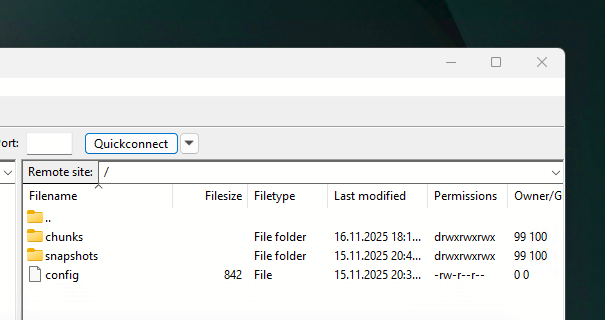
I have double checked that this path works in FileZilla with the same credentials so I know Duplicacy should be able to read the files without any permission issues. Here is the evidence:

image

Double slashes should do it:

sftp://username@192.168.10.10:2022//

Thanks. Where did you get that info?

I tried "storage": "sftp://username@192.168.10.10:2022//", but got:

runtime error: index out of range [-1].